Friday, November 30, 2012

Office 2013 First Look by Dick Evans

by Dick Evans 11-30-2012


I downloaded the trial copy of the latest version of Microsoft Office--2013. The download was quick and the install uneventful. I was surprised it left Office 2010 installed and active.

Before you get too excited about this new version, know that it only works with Windows 7 or Windows 8. If you have XP or Vista, be happy with versions up to Office 2010.
There are some other requirements as well, but everyone with 7 or 8 probably meets them. Your  machine needs at least a 1GHz processor, 1GB of RAM for the 32-bit version (2GB for the 64-bit version), at least 3GB of free hard disk space, and a graphics card that can provide at least 1,024-by-576 resolution.

Word looks a lot like 2010 but with better graphics in the ribbons. Like 2010 it has a File button and you really can't see much difference as you use it. It is in the features available that Office differs from other Word Processors. Typing a document is just as easy in Office 97 or even using Google Docs or OpenOffice.

Features in Word 2013 that really stand out.


Streamlined ribbons.
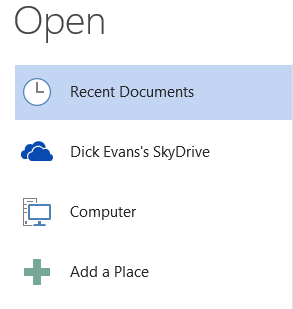

Direct access to the Microsoft SkyDrive. You can open and save documents to you Cloud storage which is free from Microsoft for 7 gb.



The ability to open and edit a PDF file. You can modify it and save the update as either a PDF or a document file.
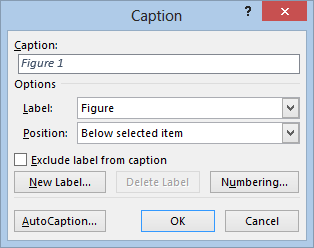

Right clicking on a picture has an option to add a caption to the image.
As I use it more I will report on any additional features that pop out at me. And I will spend some time with Excel and PowerPoint.

How do I get the 60 day trial of 2013?
Get it at http://bit.ly/ZWg8BD only for Windows 7 and Windows 8.

What about the trial version of 2010?
It is available at http://bit.ly/rKNRSK for all versions of Windows. Or you may have gotten a free Office Starter 2010 with your new computers.

Wednesday, November 21, 2012

Windows 8 First Look
by Dick Evans


A new operating system is here!

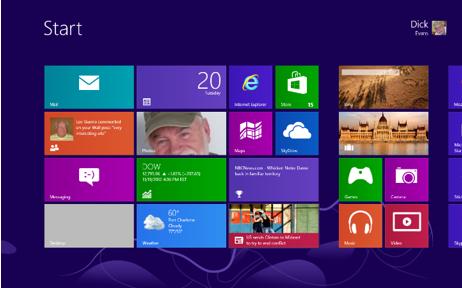
The first thing you notice is a cell phone looking interface. Although designed for touch screen access, you can still use your old monitor and a mouse. The old desktop is missing. No start button. This is a drastic change! Don’t panic, everything's not as it seems. If you have a brand new computer with a touch screen, you can use your finger to move the screen and call up apps much like you can with a smartphone. But, your mouse still works and if you click the desktop icon you are taken to a familiar screen.

Gone in Windows 8

●     The start button has been removed. Hidden is a hotspot in the lower left corner of the screen that opens the Start screen, a multi-screen interface replacement for the Start menu.
●     The Show Desktop button has been removed from the taskbar. Hidden as a hotspot in the lower right corner where it was previously located.

Added in Windows 8
●     Windows 8 has short boot times, because it saves the kernel's memory to the hard disk on shutdown (similar to the existing hibernate option) and reloads it on startup.
●     Windows 8 is said to have better performance than Windows 7, even with the new interface running on top of a desktop...
  • And a lot more...

Sunday, November 11, 2012

Taking the Plunge into Windows 8

I decided to take the plunge. I have a Dell Inspiron 1525 running Windows 7. I went to the Microsoft download site and clicked on the $39.99 pro download available until January 31, 2013. the first thing it did was spend about ten minutes checking my machine for compatibility. When that section finished it asked if I wanted to keep my settings, files, and apps, or just personal files, or nothing. I picked the first option.

Time to pay for it. You can get the download for $40 plus a DVD for $15. You can use a credit card or PayPal. After accepting payment it displays the product key and emails a receipt.

Next the 2gb download begins with an estimate of 1 hour+ to finish. My machine was running 32-bit Windows 7 Ultimate. It is a dual core Pentium @ 1.86GHz with 4 GB of RAM. And a small 160 GB hard disk drive.

That download took almost 2 hours so I decided to wait until morning to continue. When I rebooted there was an icon on the desktop to get back into the next step in the install process.

This was the same screen I had ended up on last night. There were two options I could take. the first would simply do the install. I chose the second which created an ISO file which allowed me to create a bootable install DVD, This took about 10 minutes.

I pushed the DVD back in and restarted from it. After a minute or two, the Windows 8 Setup screen appeared. I left the US defaults and clicked Next.

The next screen allowed me to either Install Now or Repair. I clicked the install option. I assume the Repair option can be used later to fix otherwise unresolvable issues.

Next it wanted the product key I had purchased and had written down. I keyed it without the dashes and clicked Next. After a couple of minutes I checked the box to accept the terms and clicked another Next button.

The next screen was very important. The Upgrade option keeps all the existing files, settings, and apps. The Custom option just installs Windows 8. I was careful to choose Upgrade.

It had me remove the DVD and restart. I was warned to not select the custom option on the restart. The tricky part was to let the old Windows 7 start normally and then push the DVD back in. When the selection screen pops up, select the upgrade option.

Read the screens carefully without making assumptions. I messed up a couple of times and had to restart the install process.

It takes a while to do the install. It asks for you to setup a log-in password, which I do suggest even if you are the only one to use your machine. Then it asks for your Microsoft email address and password. If you do not have one, register for one as Windows 8 is closely coupled with Sky Drive and other Microsoft cloud items.

That was all there is. Windows 8 booted. Everything worked. The desktop (Win+D) looks just the same as it did with Windows 7. Now I just have to get used to the new Start Menu to take full advantage of the new features. While I am doing that I can get right back to the old desktop view at any time doing whatever I was doing before 8.

More notes coming in the near future as I play with 8. Take the plunge and be one of the early adopters. The price is right!

Saturday, October 13, 2012

Free Media

Check out Wikimedia Commons. You will find over fourteen MILLION pieces of media you may download and use. And you can upload some of your own to share with others.

See http://commons.wikimedia.org/wiki/Main_Page

Build a free website

Build a free website for yourself or your church or your club or for someone else. Very easy to get started. Free templates and drag and drop tools. No need to know HTML. Anybody can do it. Click http://tinyurl.com/freeweb7 to try it out...

Tuesday, September 18, 2012

Filler Text

Have you ever seen the following in a document or on a website?

Lorem ipsum dolor sit amet, consectetur adipiscing elit. Duis a fringilla risus. Etiam tincidunt pharetra risus, vel blandit orci scelerisque ut. Aliquam varius metus nec diam egestas eu auctor urna pretium. Ut non dictum purus. Cum sociis natoque penatibus et magnis dis parturient montes, nascetur ridiculus mus. Nunc diam arcu, pellentesque eget sollicitudin non, tempus ut risus. Etiam tempus magna et justo interdum vulputate. Nulla lacinia mauris non ligula facilisis accumsan. Donec vestibulum laoreet nisl in fermentum. Aliquam ultrices viverra eros id ornare. Nam dictum arcu vel nulla viverra iaculis.

No, it is not a secret code. It is filler text used when designing a site or creating a presentation or a pamphlet. You want to set up the formatting but do not have all the content yet, so you need some filler.

It is Latin in its origin but nonsensical; a random group of words used by typesetters since the 1500’s.

Well look no further than http://www.lipsum.com. Just enter the number of paragraphs you need and click Generate Lorem Ipsum button. A new page appears with your text ready to be copied.

Monday, September 17, 2012

Watch out for this kind of email


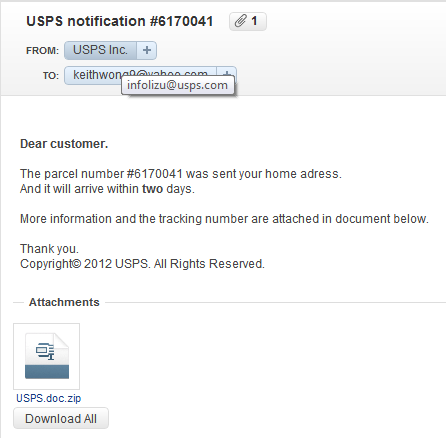
What is wrong with this picture?

  1. The From address is @usps.com and the US Post Office is a .gov
  2. The To address is not you!
  3. Dear customer -- they would always identify you by name
  4. Attachment -- they would not send you an attachment. If you upzip it your are subjecting yourself to malware

Wednesday, September 05, 2012

WARNING!

Just because the name in the from box in your email is someone you know, it may not be safe to assume it is really from them.


Here is an email I received this morning. I know Vicky and might be tempted to click on the link and see what she has to show me that she found on the Internet. Then I notice the + next to her name. I use Yahoo and that means she is not in my address book. Well, that is funny. I know she is so I mouse over here name to see the address she sent it from.


Hey, that is not her!

Had I assumed it was her because of her name, I would have clicked the link and opened my computer up to untold issues. And had I added this new address to my contacts I would not have known when this erroneous address would be used again to suck me into another trap.

Some basic rules I use when looking at my emails even when I know the sender is legit’:

  • If something looks funny, I don’t open it
  • if there is a link, I mouse over it to see where it will take be first
  • If there is a link to open a video and it is not from YouTube, I do not open it
  • If there is an attachment that is from some email pass-a-long, I do not open it
  • If it look slegit and it is from one of my financial or insurance companies, I go directly to the company Website to find out about it instead of taking the link off the email
  • If a company I do business with sends an email that does not have my name in the email but instead reads like Dear Customer, it is probably not from who I think and I do not click on any links

When downloading apps I look for them on some legit site like cnet and not from the result of a search directly. And when installing apps I avoid adding toolbars and search engines to my browser. They not only reduce the amount of room in my browser window, they add numerous background tasks that slow down the system.

In other words, I try to use common sense and not subject myself to potential threats. And I try to run the following apps once a week:
  • ccleaner
  • malwarebytes
  • defraggler
  • full antivirus scan

Friday, August 03, 2012

Word Show/Hide

One tool I use when working with a document in Microsoft Word is the Show/Hide button. Some refer to this as the Show Paragraph Marks button, but it shows more than just the paragraph mark.

As you may know, I like to use shortcut keys at the keyboard level. Well when you mouse over the button in Word 2007 or 2010 (I did not check older versions), the popup tells you that the shortcut key is Ctrl+*. That is correct, but to access the * you must hold down the shift key. I would rather say this shortcut is Shift+Ctrl+* or you might say Shift+Ctrl+8.

What this button does is display the hidden characters in a document, which includes the end of paragraph marks (backwards P), the spaces between words as dots, tabs as right arrows, and new lines as down to the left arrows.

Being able to see these hidden marks is especially helpful when copy and pasting from an email. It shows quickly why the sentences do not fill the line allowing you to easily remove the offending marks.

Thursday, July 19, 2012

Buying On Line

by Dick Evans

I remember way back when I first ventured into purchasing items online. I was apprehensive about giving out my credit card information over the net. Security back in the 90’s was pretty loose.

I began by opening a single credit card specifically for online orders. I purposely kept the credit limit low; around $500 I think. I figured if I had a problem with the account number being hijacked at least they could not get me for more than that! Good idea except my credit card company was so thrilled with my use of the card they upped my limit automatically. So much for that failsafe!

Well, security has gotten better and I am comfortable using my cards at known online retailers like Amazon and Staples and OfficeMax and Egghead... Whenever I can I like to use my PayPal account. It gives an added level of security as the place I am buying from never gets to see my credit card information. And I can use PayPal to receive funds from others.

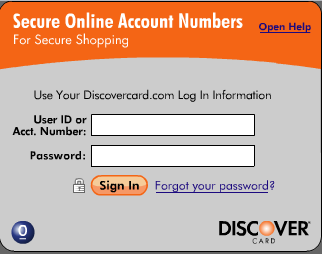
One of my credit card companies offers a one time number. The call it a Secure Online Account Number:


I sign in to my account and request a number. It immediately creates one for me to use on my next transaction. It can only be used once and will post against my credit card. Works great. I use this for all purchases that cannot be done with PayPal where I do not have a relationship with the seller.

In addition to Discover, I understand other companies offer this service as well. Check with your credit card company and see what they offer.

One last comment regarding Debit Cards. I do not like to use them. They hit my checking account right away and offer no benefit to me at all. I would never use one for an online purchase.

The math is simple. I buy with a debit card and my checking account is hit right away. Not only do I have to have the cleared funds available but I have no recourse if I have an issue with what I purchased.

When I use a credit card, I have 30 or more days of the money being in my checking account. If my account pays interest, I am paid by the bank to leave it there. Add to that the 1% to 5% cash back rewards I get with my credit cards--they pay me to use their card. If I have an issue with something I ordered, they go to bat for me with the seller to resolve the issue. In the meantime the charge is taken off my account so I am not charged any interest.

Simply put, I use credit cards and PayPal to purchase online. If the seller is an established company, I trust them with my information. If not, I use a one time number for the purchase.

Thursday, May 31, 2012

Securing Our Computers

We spend time backing up our data so if our hard drive crashes we can get most of it back to a new drive or new computer. We password protect important things like our accounting information and even set up our user name so it requires a password to log on to Windows.

But what if we lose our laptop or netbook or even our new tablet?

Sure, they may need a password to log on as us, but what if they take out the hard drive and hook it up to another computer? Yes, they can do that and access all the files except those password protected. They can even boot the computer with a CD having its own operating system like Ubuntu and access everything right on the drive without having to remove it.

There is an alternative that will protect all the data on the hard drive and remove all possibility of anyone accessing the data, even you.

Using the boot option to access setup, F2 on most of my computers, check to see if there is the possibility of adding a password to the hard drive. If so, add one. Then only those with the password can boot the machine and log on. BUT DO NOT FORGET THE PASSWORD or even you will never be able to get it to work.

Monday, May 28, 2012

Mailto Links

No matter which version of Windows you use, when you click on a mail to link on a Web page, Windows opens Outlook and attempts to process the compose email for you. Great if you use Outlook. Not so great if you use Gmail, yahoo, hotmail, or any other alternate method.

This little program takes away the problem by allowing you to assign the correct email carrier to your default browser.

Download it from http://gmaildefault.codeplex.com/ and run it. It pops up a list of email clients like Gmail, yahoo, etc. Choose the one you want to use and the next time you need to send an email from a Web page link your email app opens. No more messy copy and paste to get that email address to the right place.

Tuesday, May 22, 2012

Send to on Steroids

You probably know you can right-click any file and the select Send-to to get a list of apps or locations to copy the file to. Hold the shift key down before the right-click and the list of places to send it to increase to include your most used folders

Monday, May 21, 2012

Convert PDF to an Image

There are times when it is much more convenient to send an image file (jpg) to someone or to post it somewhere like on Facebook. I used to display the PDF and make it small enough to see it all on my screen. Then I would capture the image with the PrtSc key or use the Snipit tool.

I found an easier way. Just open www.pdf2jpg.net, upload the PDF, and in a pretty shore time the resulting JPG file I available for download. If it is a large PDF, you can enter your email address and they will let you know when the conversion has finished. 

More Shortcuts

You need a lot of fingers to count all the shortcuts available in apps. These have to do with browsers and work with most of the popular ones.

F6 (or Ctrl+L or Alt+D) changes focus to the address bar with the current address selected

F5 refreshes the window, but uses cache for some of the items on the page

Ctrl+F5 does a hard refresh pulling everything from the host site instead of cache

Ctrl+n with n being a number from 1-9 indicating the tab you want to switch to counting from left to right

This one is very useful to me. I cannot tell you how many times I have closed a tab in error and wished there was a way to go right back to it.

Ctrl+Shift+T reopens the last closed tab

Alt+Home opens the Home page

We all know that pressing Enter after entering the address in the address bar open the site.

Alt+Enter opens the address in a new tab

Ctrl+U opens a new tab with the source code (HTML) for the page

Monday, May 14, 2012

Analyzing Files on Disk

In a time long ago we ran under an OS called DOS. If we wanted to see what was on the hard drive or any disk, we would issue the DIR command from the command line and a tree view of the contents would roll up the screen. Using some redirection we could send the results to the printer or to a file.

In Windows we use explorer to look at any folder and can drill down into them visually, but lack the means to print a list. Enter TreeSize. Its free version shows drive contents as a list sorted by size, with simple and clear bars indicating relative size. A great way to view all your content and print it out.


If all you need is that DOS like list of files, try FileList from the same company. It produces a list of files in CSV format. Open in a spreadsheet app to analyze


This is a command line app. Use Win+R to open the run dialog box. Type CMD and press enter to open a command window. See the manual at http://www.jam-software.com/filelist/manual.php to understand how to use it.

Syntax is “path to filelist.exe” “ path to be listed” “ path to output file and its name”. When it finishes, open the resulting file in a spreadsheet app to analyze the results.

Sample command line:
C:\programfiles>FileList.exe  c:\users\user\download  > c:\results.csv

This assumes the program is in ProgramFiles, the files we want listed are in the download folder for the user named user, and the results are to end up in a file at c:\ called results.csv.

CC Enhancer

In a past post I mentioned that I used ccleaner to keep my PC running smoothly. It is a simple app that cleans out lots of junk on your system. The cc stands for “crap cleaner” and it works fine. It even cleans up the registry files for you.

In addition to the junk that results from using Windows, other programs create their own and ccleaner does not address those. Well an add-on to ccleaner called ccenhancer adds the ability to clean out the junk from 500+ known applications and it all happens right inside ccleaner.


After you install it, run ccleaner and note all the applications listed under the application tab. Before running ccleaner, always do the updates so you get any additional apps that have been added.

While you are at it, consider download defraggler. It does a great job defragging your disks. And remember to only defrag hard drives and never solid state devices like the new drives or your USB flash drives. If you do, you will reduce their lifetime.

Sunday, May 13, 2012

Earn 12% Per Year

I do not know what your bank is paying. I have more than one bank I do business with and not one of them pays a dime on the money in my checking account. Savings is a little better, but it is like .1% -- that’s a tenth of a percent per year which comes down to .0083333 per month!

When I was in elementary school, the local bank would come in and give us a talk on the importance of saving money. They helped us open our own savings account and gave us a book where we could see how much we had and see the increase each month as they applied the interest which was around 3%.

So how do you earn up to 60% per year? Cash rewards, that’s how.

Many credit card companies offer cash rewards for your purchases. 1% at least, but often up to 5% in specific purchases like groceries or gasoline. And that is the percentage for that month's purchases, not an annualized percentage.

Keep $5,000 in a savings account for one year and at .1% you will earn about $5 for the year. Charge $5,000 each month and receive $50 per month in cash rewards or $600 for the year. That is 120 times as much or an effective rate of 12% per year.

Of course you need to pay the credit card bill off in full each month. If you happen to get up to 5% on some of your purchases that percentage could go as high as 60%, but will probably be at least higher than the minimum of 12%.

Unlike the interest you earn at the bank, as little as that is, you do not receive a 1099 on your cash rewards at the end of the year. Your “earning” are rewards for using your credit card, not interest paid.

What can you do with those rewards? The simplest is to apply them to your credit card bill. I use them to purchase items at Amazon.com or sign on to the credit card rewards site to purchase gift cards often at lower than face value; $20 to purchase a $25 gift card is not uncommon.

The key is to use your purchasing power to make money. Charge to save. You get to delay payment for up to 30 days while you wait for the bill to come in and pay it. Pay the entire bill and earn the rewards. Then use the cash in a way that works best for you.

Adding a Site Map

Some Websites have a page called a site map. It is a hierarchical view of all the pages in the site and a great way to locate the page you need to find without having to go through a series of links from page to page.

I knew I could create one on my own using HTML, but I just found a simple way to do using a Free Online Sitemap Generator. You simply enter the URL of the site and it does all the work. Have a site you go to all the time that does not have a site map? Make one and save it on your computer. Open the resulting file in your browser and you have a personal map to all the pages on that site.

Open http://www.xml-sitemaps.com/ and key in the site address (URL). When it finishes you can choose from the xml version or the html version. I saved the html version in MyDocuments and opened it in my browser.

The free version does not handle all the nested pages as some of mine were missing. But you can run it again with the starting page being that nested folder. Still easier than doing it by hand. And the pay-for version is very reasonable with lifetime updates free.

Friday, May 11, 2012

Snapshot of System

A friend reminded me of a great free app that reviews your entire computer and displays a very detailed analysis of what hardware and software you have installed. It is called Belarc Advisor and you can download it at http://www.belarc.com/free_download.html.

Here is a sample of the first page of its analysis: