Monday, March 16, 2015
Tuesday, December 23, 2014

Sunday, January 26, 2014
Easy Way to Send Pictures by Email
Just came across this website that has a small app you download. Then you can send one or a bunch of them by email. After selecting the ones to send you can even rename them and resize them for faster upload. Your pictures are zipped and sent for you.
http://zoomfoot.com/
And here is a great video on using it:
http://youtu.be/fMj6j58il1c
http://zoomfoot.com/
And here is a great video on using it:
http://youtu.be/fMj6j58il1c


Resize That Picture
Here is a great site you can use without either downloading and installing software or having to upload your large images to do the editing.
http://pixlr.com/editor/
Go right to the site and it opens like it was installed on your computer. Locate the images on your computer, then click Image > Image Size. When you have it the size you want, File > Save and give it a name and location. Easy as that.
Here is a link to a good video on using this site and also how to use Paint to resize.
http://youtu.be/CchKeOZeqhY
http://pixlr.com/editor/
Go right to the site and it opens like it was installed on your computer. Locate the images on your computer, then click Image > Image Size. When you have it the size you want, File > Save and give it a name and location. Easy as that.
Here is a link to a good video on using this site and also how to use Paint to resize.
http://youtu.be/CchKeOZeqhY
Sunday, January 05, 2014
Glary Utilities
I like using Glary Utilities. It has an easy to use interface with one click access. And the Advanced Tools contains many useful items such as a quick defragger and and easy to use program uninstaller.
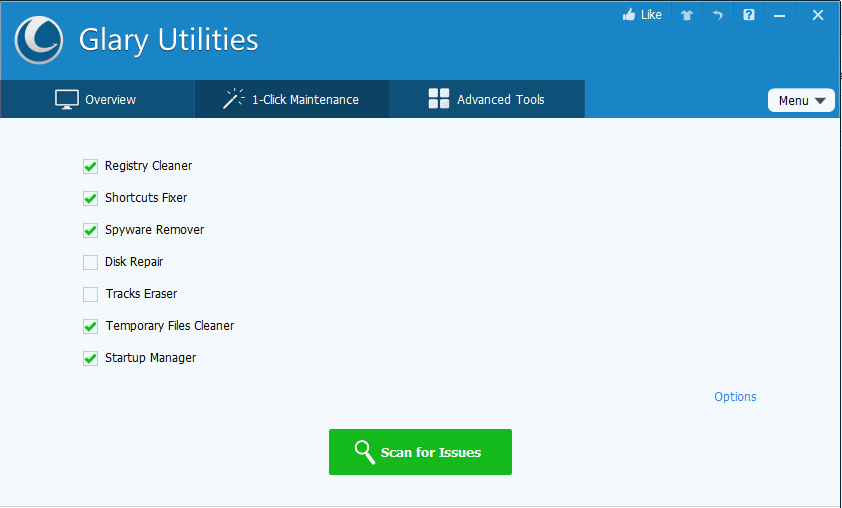
Here is a great page on their site explaining what each of the tools in both 1 Click Maintenance and Advanced Tools can do for you:
http://feedback.glarysoft.com/
Here is a great page on their site explaining what each of the tools in both 1 Click Maintenance and Advanced Tools can do for you:
http://feedback.glarysoft.com/
Monday, December 16, 2013
The New Yahoo Mail
Three things bothered me about the new look and feel of Yahoo Mail.
1. My tabs were gone
2. The new "conversation" view
3. The need to scroll down to click SEND
Well the tabs were not fixed, but they did add a new Recent folder in the left column that lets me see the emails I have looked at. It even shows me the email I am I the middle of composing so I can get beck into it.
I found how to turn off that nasty (my opinion) conversation view. Click the gear in the upper right corner. Then Settings > Viewing email. Uncheck the Enable conversations check box. Now you get to see things the way you used to.
On that same screen you can change to the basic email format and skip all the new stuff.
To get to the bottom of the screen to use the tool bar, press Ctrl+End. When you are finished writing your response you can Ctrl+End and then click SEND. Or you can just press Ctrl+Enter instead.
1. My tabs were gone
2. The new "conversation" view
3. The need to scroll down to click SEND
Well the tabs were not fixed, but they did add a new Recent folder in the left column that lets me see the emails I have looked at. It even shows me the email I am I the middle of composing so I can get beck into it.
I found how to turn off that nasty (my opinion) conversation view. Click the gear in the upper right corner. Then Settings > Viewing email. Uncheck the Enable conversations check box. Now you get to see things the way you used to.
On that same screen you can change to the basic email format and skip all the new stuff.
To get to the bottom of the screen to use the tool bar, press Ctrl+End. When you are finished writing your response you can Ctrl+End and then click SEND. Or you can just press Ctrl+Enter instead.
Saturday, December 14, 2013
Thoughts on Browsers
It does not matter which browser we choose to use; chrome, Firefox, internet explorer, etc. They each allow us to either type an exact address (URL) to a website or one or more words to cause the browser to access our default search engine to look for a site.
However, remember that a search engine allows us to guess the location of a site to visit. Knowing the actual URL gives us immediate access taking away the guesswork. Guessing can easily take us to places we should not go allowing the potential for us to capture all types of malware in our travels.
So when searching, look at the results and where your next click will take you. Is it what you were looking for?
However, remember that a search engine allows us to guess the location of a site to visit. Knowing the actual URL gives us immediate access taking away the guesswork. Guessing can easily take us to places we should not go allowing the potential for us to capture all types of malware in our travels.
So when searching, look at the results and where your next click will take you. Is it what you were looking for?
Sunday, October 13, 2013
Remove Image Backgrounds
Ever take a great picture with your phone or your camera but it is filled with all kinds of stuff in the background?
Found a neat website that let me take this picture
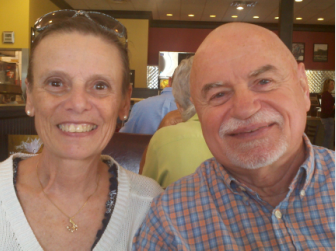
And turn it into this one

And it was all done in the cloud. Give it a try at
http://clippingmagic.com/
Found a neat website that let me take this picture
And turn it into this one
And it was all done in the cloud. Give it a try at
http://clippingmagic.com/
Friday, September 27, 2013
Fix Chrome's New Tab Page
Chrome has a new look for its new tab page and I do not care for it. I want to see the list of apps is used to display. There is a fix for it. Read the following article. It is pretty easy to do.
Here are the steps I took:
Here are the steps I took:
- In the address bar type chrome://flags and hit the enter key
- Locate (use Ctrl+F) "Enable Instant Extended API" (without the quotes)
- Pull down the selection arrow and choose Disabled
The next time you open your Chrome browser the tab will work like they used to.
Here is the link to the article I found:
Sunday, September 15, 2013
How is Your Website Doing?
I came across this interesting site the other day. It displays statistics about your site. Even gives you the ranking information--mine is like 5 million down. It shows a value for your site, but I have no idea how it arrives at it. Give it a try. If nothing else, it is fun to look at for some of the sites you frequent.
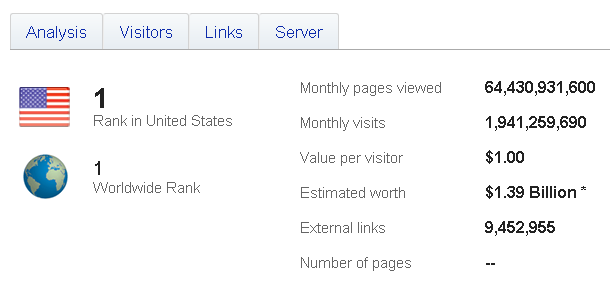
Guess what the #1 site is? Yup, Google.com, Here is what they have to say about them:
So check out urlm.co
Guess what the #1 site is? Yup, Google.com, Here is what they have to say about them:
So check out urlm.co
Wednesday, August 14, 2013
Show Hidden Passwords
Most of my user names and passwords are set in my browser so when I access that site all I have to do is click sign in. Well I tried to sign into an account on a different machine and I had forgotten the password. When I went on this machine all I could see was *****. I did not want to click the forgot password link because it would have me change the password and it was working in my other machines and on my phones.
Google search to the rescue once again. There is an add-on for Chrome that will reveal a password when you click in the ****** field. It is called Show Password on Focus. I added the app and restarted Chrome. Then I went back to the sign in screen and clicked the **** field. The asterisks changed to the visible password and I used it on the new machine. Cool.
Here is the link to add it to your Chrome browser http://tinyurl.com/m6gepxl
And here is method #2 built right into Chrome. You can display all the saved user names and passwords in Chrome by entering the following URL into a new tab: http://chrome://settings/passwords
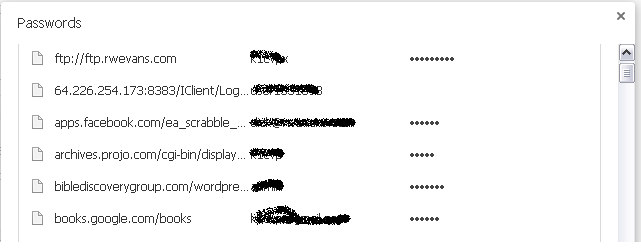
When you click on one of the password fields a button displays to the right of the password.

Click Show to display the actaul password instead of the asterisks.
Google search to the rescue once again. There is an add-on for Chrome that will reveal a password when you click in the ****** field. It is called Show Password on Focus. I added the app and restarted Chrome. Then I went back to the sign in screen and clicked the **** field. The asterisks changed to the visible password and I used it on the new machine. Cool.
Here is the link to add it to your Chrome browser http://tinyurl.com/m6gepxl
And here is method #2 built right into Chrome. You can display all the saved user names and passwords in Chrome by entering the following URL into a new tab: http://chrome://settings/passwords
When you click on one of the password fields a button displays to the right of the password.
Click Show to display the actaul password instead of the asterisks.
Monday, August 12, 2013
iDrive FREE Cloud Backup
I came across this backup site the other day. They give you 5gb for free. Like them on Facebook and get .5gb more. The like them on Twitter and get another .5gb. And finally setup and use the service for an additional .5gb. That is a total of 6.5gb for free and more than enough for all my critical files.
You set the folders and the time to backup each day and it just happens. When it finishes you get a display on screen of how many files it backed up and an email in your inbox to let you know it did the backup.
Click the link below and give it a try. Nothing to lose and a safe place to keep your critical files.

https://www.idrive.com/?uid=U6K1S9L3C3
Sunday, July 21, 2013
Thoughts on Backing Up
I recently had a question about backing up. We can use CD's, DVD's, flash drives, external drives, and even the cloud. The CD/DVD route is slow but effective. Flash drives are useful but limited in speed and capacity. External drives and the cloud seem to me to be the best methods. Here is what I do for my own backups.
To figure out how much space you will need to copy your data to an external device, Click Start > My Computer and locate your folder (under Users in Vista and above and Documents and Settings in XP). Right click and choose Properties to see how large an external device you will need to save all the data. My "Size on disk" is over 24 gb so it would not fit on a 16 gb flash drive. If yours is less than 16 gb, then you can click properties and Send To the USB drive. If not, use an external hard drive and Send To that drive instead.
A better approach, in my opinion is to use the Cloud daily and a backup application at least once a month.
First of all you need a cloud backup service that will backup your important files automatically. I use Mozy for that. Use the referral code GFBU22 to get the additional .25gb of storage--a total of 2.25 gb. This should allow you to backup all but your picture folder, and maybe that too depending on how big it is for free.
Here is a link to a class I gave on backups: http://rwevans.com/cccgc/BackingUp.pdf
As I mentioned in the class notes, I use EaseUS ToDo backup (http://www.todo-backup.com/products/home/download.htm) to do a complete image backup of my computers at least once a month. I do the backup to an external drive. The software is free for home use and works great. If my system fails, I can use the bootable CD created when I installed EaseUS to boot and bring my computer right back to where it was when I created the image. Then using Mozy I can sign in and restore those files I had let it backup daily and be right back to where I left off in a very short time.
Friday, July 19, 2013
Tweeting Long Messages
If you have a Twitter account you know there is a limit to the number of words you can tweet. To get around that limitation I use TwitLonger.com. I open up TwitLonger and type or paste my message. When I click the Post button, my message is saved with link to view the entire message, no matter how long it is.

The account is free and it works great. Give it a try!
Check out my tweets and follow me at https://twitter.com/RichardEvans32
Friday, June 21, 2013
Remove the blue line when forwarding an email in Yahoo
That darn blue line when forwarding an email in Yahoo has been bothering me for a while and I found the answer to removing it:

- Click to forward the email.
- Then select all of the message.
- On the email toolbar locate the indent buttons.
- Click the left indent until the line goes away.
Subscribe to:
Posts (Atom)